Facilitator guide
How to practice a workshop before running it with your team
Run a 15-20 minute practice round so you feel confident before the real session. Your can either run it solo by using two browser windows or run it through with a teammate. This guide uses Letting Go of Old Ways as the worked example, but the same steps apply to any workshop in the toolkit.
Last updated: August 13, 2026
Before you start
A practice run lets you see the facilitator controls and the participant experience at the same time. You only need:
- Your facilitator login for the toolkit
- Two browser windows on the same computer or enlist a teammate to help
- About 15 minutes
Why two windows?
Pick a workshop
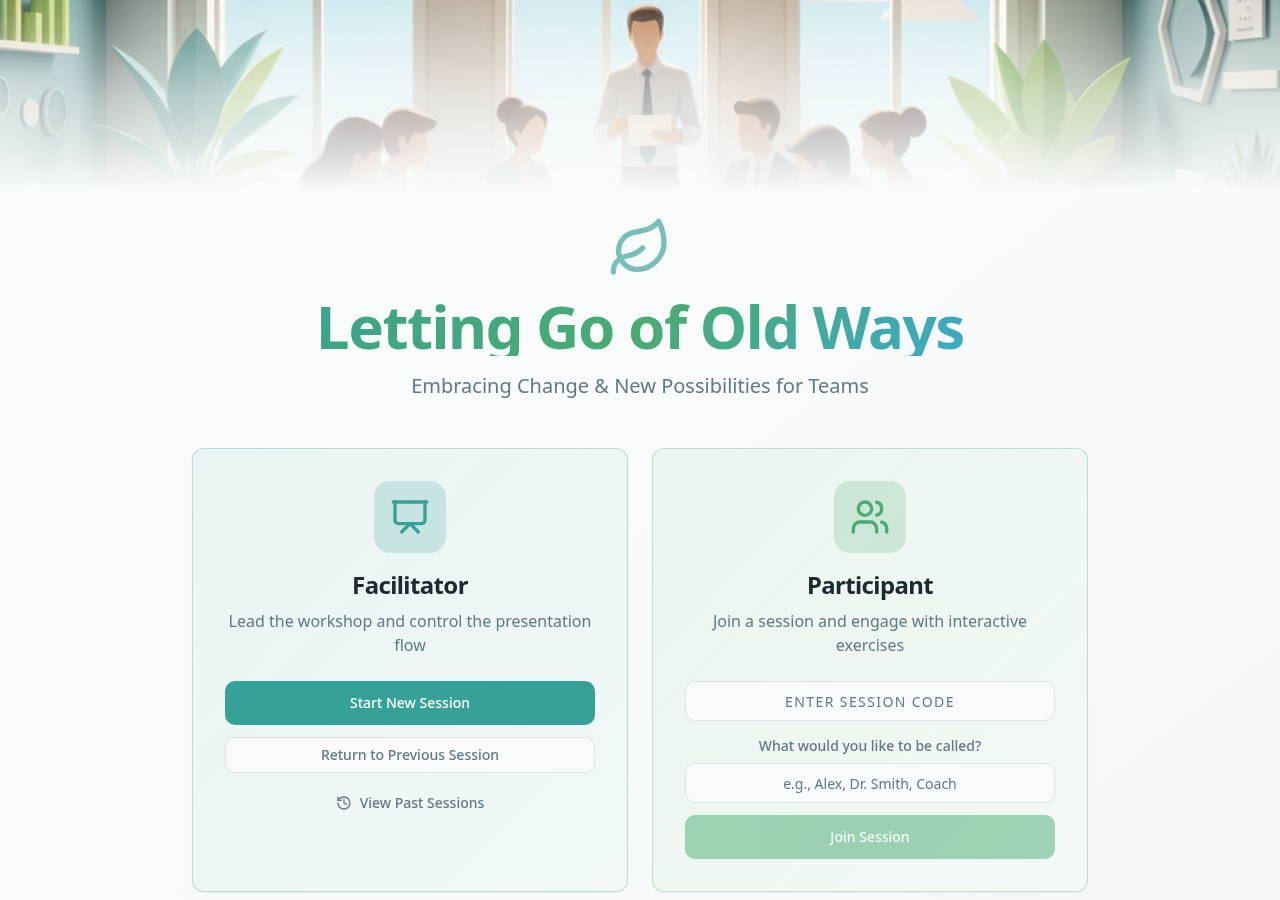
Start at the Knowledge & Collaboration Section and choose the workshop you want to practice. For this guide, select Letting Go of Old Ways.
Click the workshop card or link. That will take you to the workshop's own page, where you can start a new session.
Create a new session
The workshop page is your facilitator entry point. There is no separate sign-in or single sign-on step — just click Start New Session to create a practice session.
Give it a name that makes it obvious this is a test, for example:
TEST – Do not use – Letting Go of Old Ways
Some workshops let you adjust settings before you start. For your first practice run, leave the defaults in place. You can always experiment later.
One session per team
Rename your test session
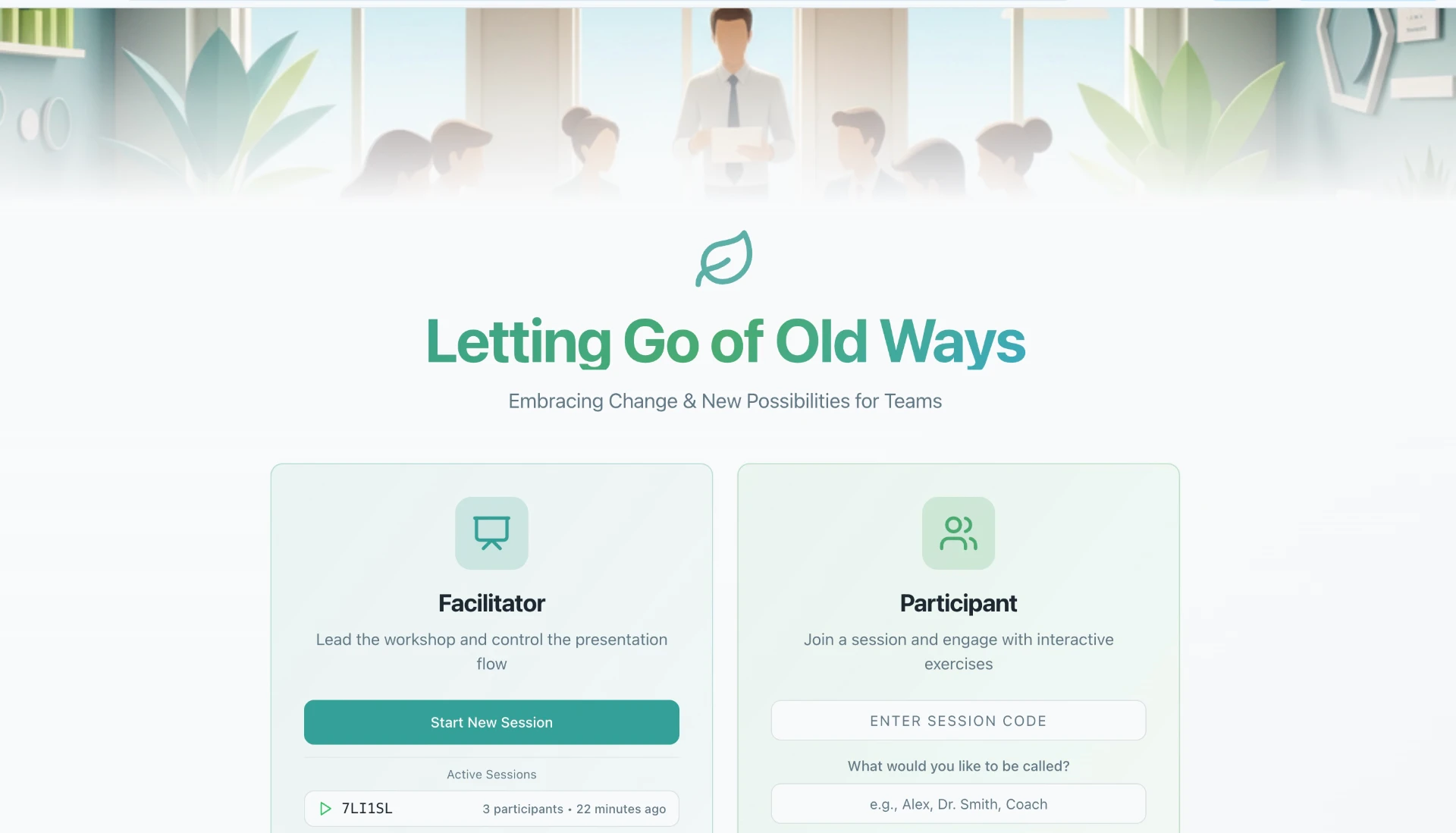
Once the session is created, you can give it a clearer name from the facilitator hub. Head to the facilitator hub, click Past Sessions, find your test session, and rename it there.
You do not need to do this before testing — it is fine to run the practice round first and tidy up the name afterward.
Copy and share the participant link
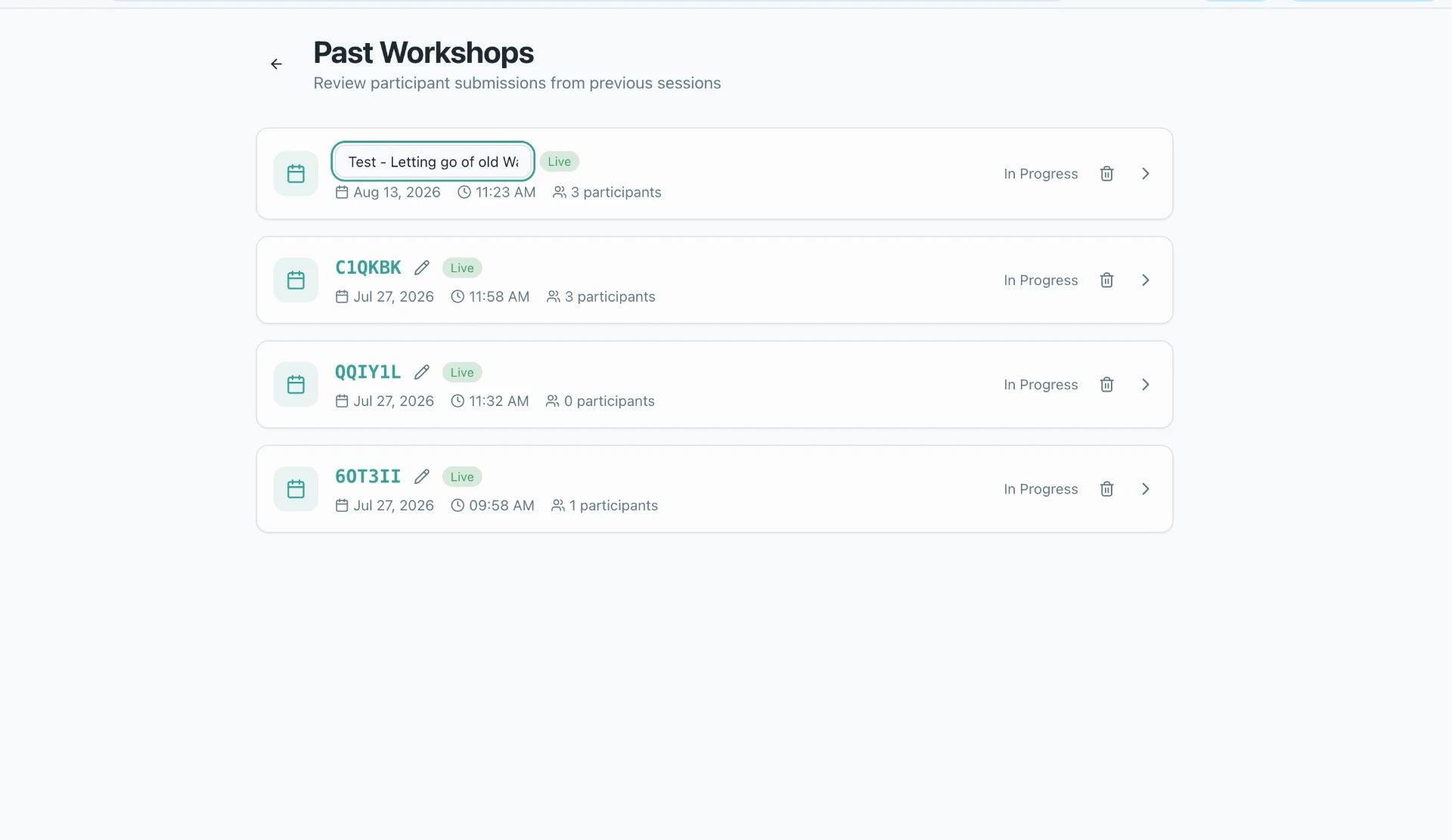
Once the session is created, the facilitator view shows a shareable participant link. It usually looks like a short URL or a QR code.
- Click the copy button next to the link.
- Paste it somewhere you can reach quickly, such as a scratchpad or chat message to yourself.
- Do not close the facilitator window.
This link is what participants will open. It does not require a login — anyone with the link can join while the session is open.
Join your own session as a participant
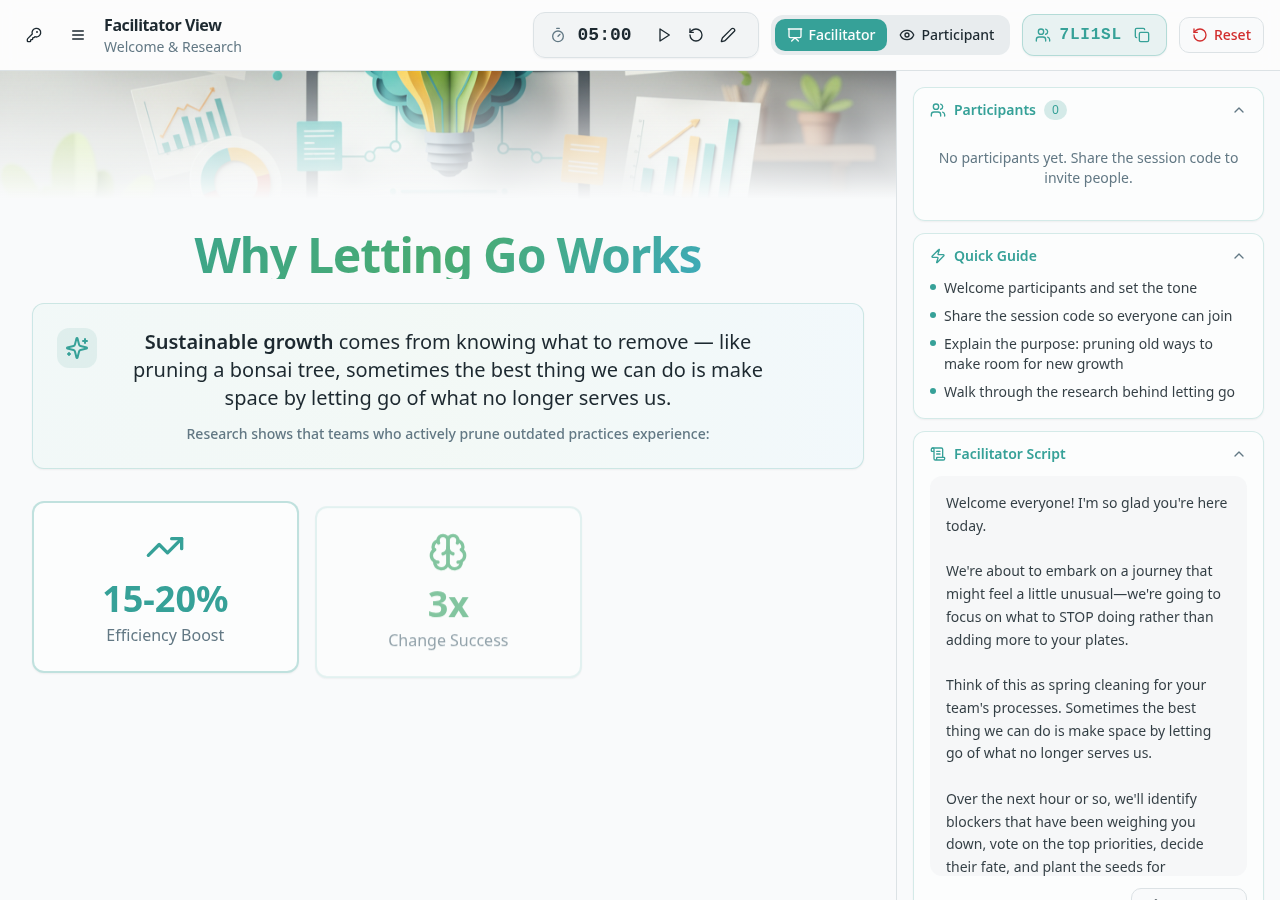
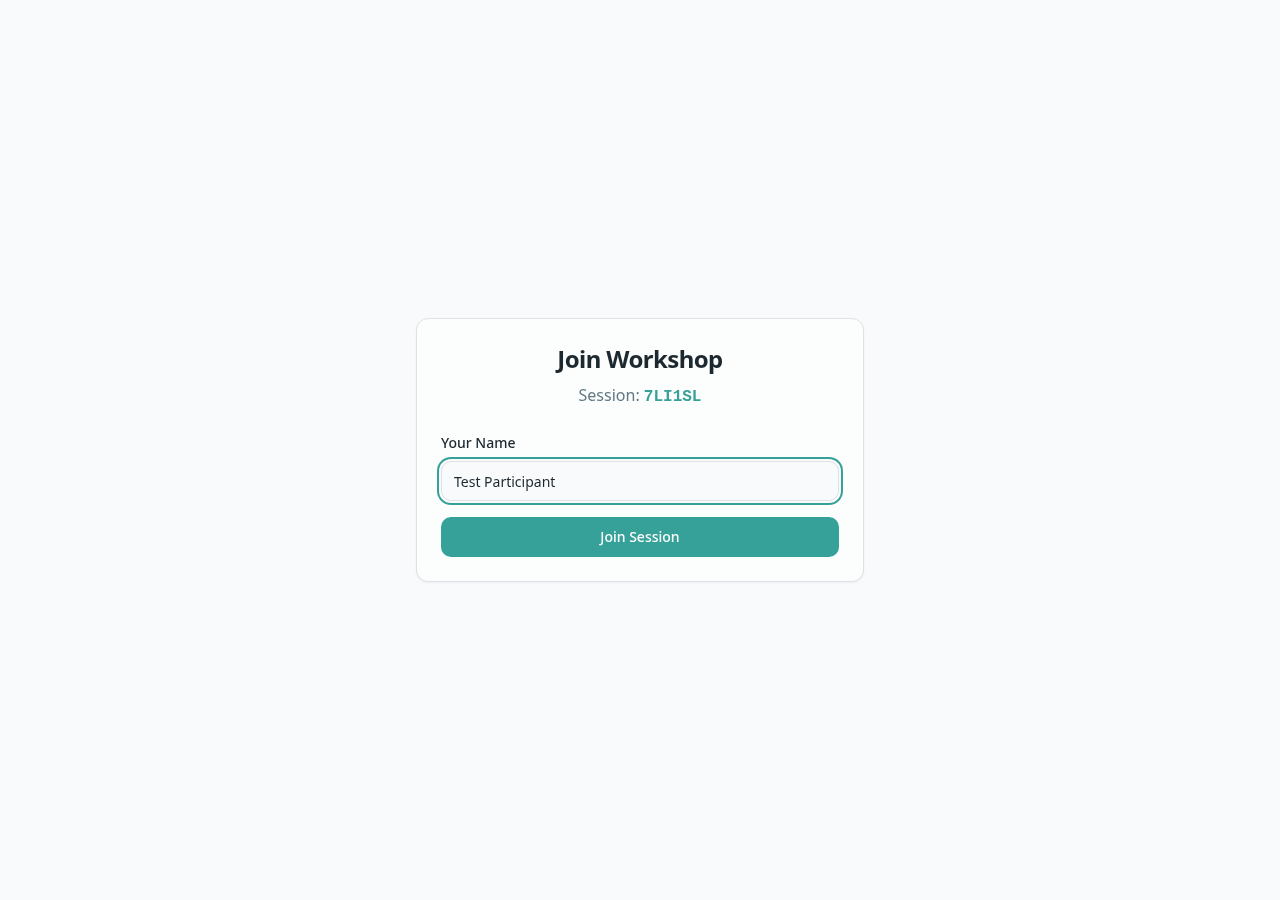
Open a new private or incognito browser window and paste the participant link into the address bar. When the page loads, enter a test name like Practice Participant so you can tell your test responses apart from real ones later.
Use a private window
You should now have two windows side by side: the facilitator controls on one side and the participant join screen on the other.
If you do have a teammate running through it with you as well share the participant link with them to sign in as well.
Run the workshop end to end
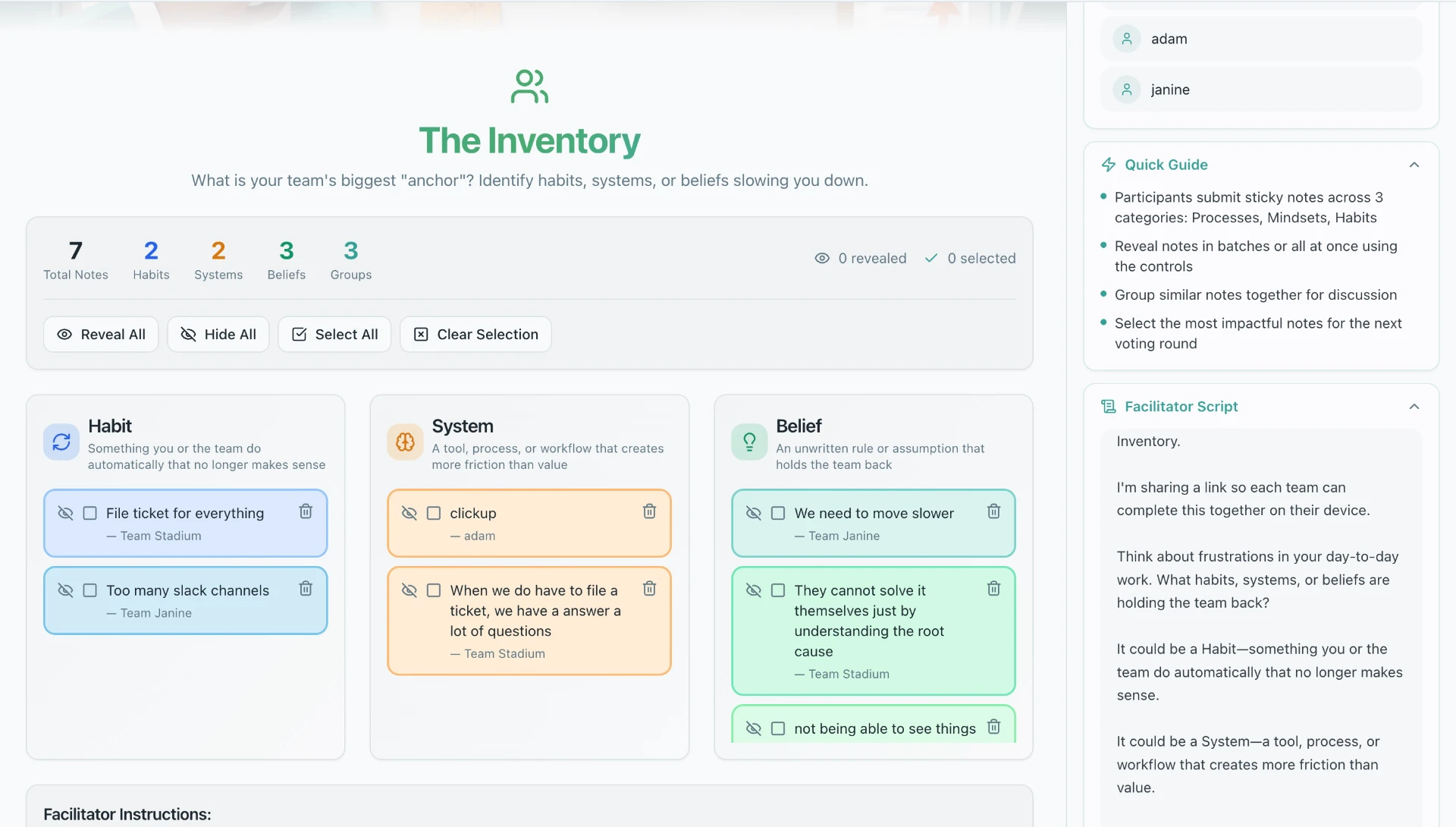
Start the session from the facilitator window. As you advance through each activity, watch how the participant window responds.
- Reveal the first prompt in the facilitator window.
- Submit a response in the participant window.
- Check the facilitator view to see the response appear.
- Advance to the next activity and repeat.
Try this for every activity type in the workshop — reflection prompts, polls, group exercises, and closing activities. The goal is to know what participants see before they see it.
Review results and reset
When you reach the end of the workshop, the facilitator view will show a summary or results page. This is the same page you will use with a real team, so use the practice run to understand:
- Which responses are shown to the group
- Which responses are private to the facilitator
- How to export or save the outputs
After you finish reviewing, end or archive the test session. Then create a fresh session for your real team so the practice responses do not mix in.
Facilitation tips
Run it once, then run it twice
The first practice run is for learning the buttons. The second is for learning the pacing. If you have time, do both.
Name your test sessions clearly
A name like "TEST – Do not use" prevents you from accidentally inviting a real team to the wrong session.
Prepare your prompts
Read through each activity prompt before the session. That way you can paraphrase instead of reading from the screen.
Check your screen share
If you plan to screenshare the facilitator view, test screen sharing during your practice run so participants see only what you intend.